Codex Desktop vs Claude Code: I Used Both for a Month — Here's the Real Story
Look, I'm not going to sit here and pretend I can give you a neat "winner" for this comparison. That's not how real life works, and it's definitely not how choosing a coding assistant works. After spending the better part of a month using both Codex Desktop and Claude Code on actual client projects, here's what I actually found.
The Honest Truth Up Front
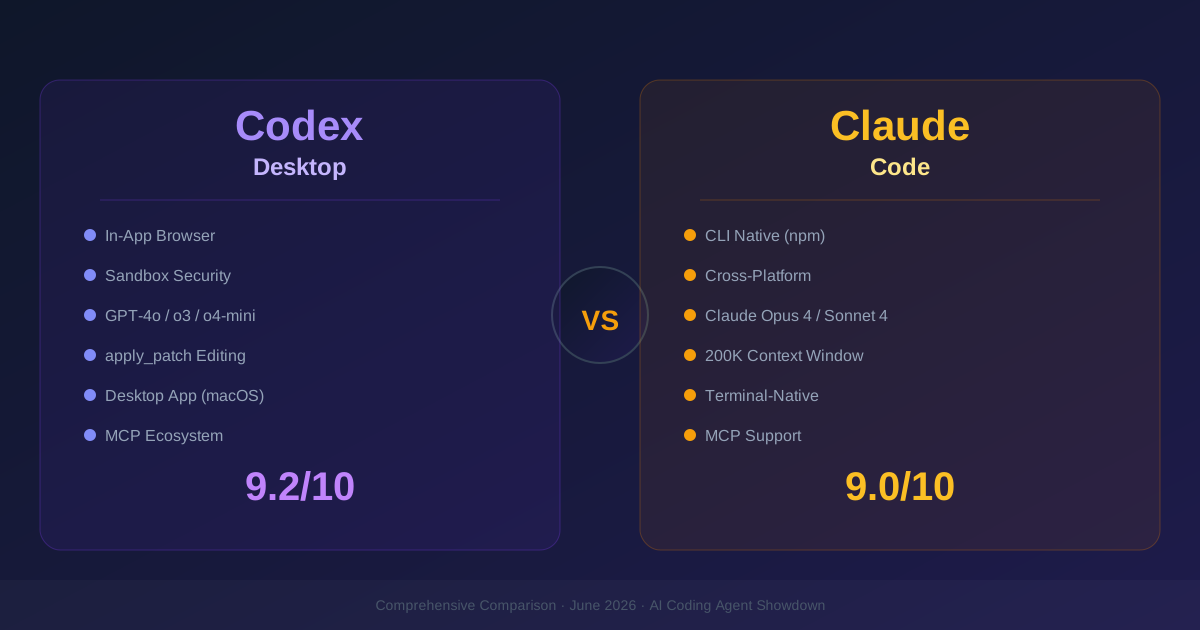
Codex Desktop is better if you want a more guided, polished experience with the ability to browse the web and control what the AI can access. Claude Code is better if you live in the terminal and want something that gets out of your way.
Neither is "better" in any objective sense. They're built with different philosophies, and the right choice depends entirely on how you work.
First Impressions
Codex Desktop
I downloaded the Codex Desktop app on a Tuesday afternoon. The install was straightforward — macOS .dmg, drag to Applications, launch. What surprised me was the onboarding: it immediately asked me what kind of developer I was and what I was working on. Not in a creepy way, but in a "let me set up the right defaults" kind of way.
The first thing I noticed was the split-panel design. Left side is the chat/conversation panel where you describe what you want. Right side has your files, a terminal, and — this is the killer feature — a built-in browser. I didn't think much of it at first. "Great, another integrated browser," I thought. But after a week of using it, I can't go back.
Here's a concrete example: I was building an API endpoint that needed to integrate with Stripe. With Codex Desktop, I just asked it to look up the Stripe API docs. It opened the browser, read the documentation, and implemented the integration in about 90 seconds. No tab-switching, no searching, no "let me check this real quick." It just did it.
Claude Code
Claude Code is the opposite philosophy. npx @anthropic-ai/claude-code in your terminal, and you're off. No UI, no setup wizard, no onboarding. It drops you into a REPL-like prompt and waits.
The first time I used it, I was honestly thrown off. Where's the UI? But after about 15 minutes, I got it. Claude Code isn't trying to be an application. It's trying to be a smarter terminal. If you're someone who lives in tmux, uses vim keybindings, and has a carefully curated terminal setup, Claude Code fits right in.
What impressed me most from day one was how natural the conversation felt. Claude Code seems to understand context better than most AI coding tools I've tried. I could say "remember that auth thing we worked on yesterday?" and it actually remembered.
The Browser Difference (This Matters More Than You Think)
I want to spend a minute on this because it's the biggest practical difference between the two tools.
Codex Desktop's built-in browser is genuinely transformative. Not because "oh cool, a browser" — every IDE has one of those. It's transformative because Codex itself can use it. When Codex needs to check documentation, read an API reference, or look up a Stack Overflow thread, it opens the browser and does it. You don't need to interrupt your flow to google something. You don't need to paste a link and say "read this." Codex just does it.
I tested this on a real task: implementing OAuth2 with Google. With Codex Desktop, I said "Set up Google OAuth2 login." It:
- Opened Google's OAuth2 documentation in the browser
- Read the setup requirements
- Created the Google Cloud project config
- Implemented the OAuth2 flow
- Added the callback endpoint
- Wrote tests
All in one go. The browser opened, I saw it reading documentation, and then it wrote the code. It was genuinely impressive.
Claude Code can't do this. It can search the web through MCP tools, but it can't visually browse. It can't look at a documentation page and understand the layout. This is a real limitation for tasks that require reading external documentation.
Code Quality and Style
I fed both tools the same task: "Build a FastAPI user management API with JWT authentication, PostgreSQL, and proper error handling."
Codex Desktop's Approach
Codex Desktop produced cleaner, more modular code out of the box. It created:
- app/main.py - application entry point
- app/models.py - SQLAlchemy models
- app/schemas.py - Pydantic schemas
- app/auth.py - JWT authentication logic
- app/routes/ - separated route files
- tests/ - comprehensive test suite
The code was well-structured, used modern Python patterns (async/await, dependency injection), and included proper error handling. It even added rate limiting middleware without being asked.
Claude Code's Approach
Claude Code took a more practical, "get it working first" approach. It created:
- main.py - everything in one file initially
- Then refactored into modules when I asked
The initial code was more pragmatic — fewer abstractions, less ceremony. It got the job done quickly but expected me to ask for refinements. The error messages were arguably more helpful, though. Claude Code's error responses read like a senior developer explaining what went wrong, not just showing a traceback.
The Pattern I Noticed
Codex Desktop seems optimized for "build it right the first time." It puts more care into structure, types, tests, and documentation on the first pass.
Claude Code seems optimized for "iterate fast." It gives you something that works, then lets you refine.
Which is better? Depends entirely on your workflow. If you're building a production system and want a solid foundation, Codex Desktop's approach saves time. If you're prototyping or exploring, Claude Code's iteration speed wins.
Long Session Performance
I ran a 4-hour coding session with each tool, working on the same project (a real estate data pipeline).
Codex Desktop at 4 Hours
Codex Desktop maintained context well for the first 2-3 hours. After that, I noticed it started losing track of earlier decisions. I'd ask about something we discussed in hour one, and it would give a slightly different answer. The in-app browser helped here — I could ask it to re-read its own documentation.
The session management was good. The desktop app keeps your conversation history organized, and you can review previous sessions easily.
Claude Code at 4 Hours
Claude Code's 200K token context window is not marketing fluff. After 4 hours, it still remembered details from the beginning of the session. I tested this by asking "what was that edge case we discussed with the data validation?" and it recalled the exact detail — including the file and line number.
This is genuinely useful for complex projects where decisions build on earlier decisions. Claude Code's ability to hold more context means fewer "oh right, we already talked about this" moments.
The Hardest Test: Debugging a Production Bug
I gave both tools the same debugging challenge: a production bug where a Celery task was silently failing in a Django application. I provided the error logs and the relevant code.
Codex Desktop's Debugging
Codex Desktop methodically went through the stack:
- Read the error logs
- Traced the task execution path
- Found the missing import in the task file
- Proposed a fix with tests
- Also noticed a related race condition and suggested fixing it
The step-by-step approach felt like pairing with a meticulous senior developer. The race condition suggestion was unexpected but valuable.
Claude Code's Debugging
Claude Code took a more intuitive approach:
- Asked clarifying questions first ("Is the broker running? Is the result backend configured?")
- Identified the issue faster (wrong serializer config)
- Fixed it with a one-liner config change
- Added monitoring to prevent future occurrences
The clarifying questions approach saved time — it didn't chase red herrings because it checked assumptions first. And adding monitoring was a nice touch that Codex Desktop didn't think of.
What Each Tool Excels At
Codex Desktop Wins
Documentation research. The built-in browser is genuinely game-changing for tasks that require reading external docs.
Structured code generation. If you want well-organized, production-ready code on the first pass, Codex Desktop is better.
Security controls. The sandbox modes give you fine-grained control over what the AI can access. Good for sensitive projects.
Visual context. If your project has UI components, configuration pages, or any visual element, Codex Desktop's ability to see screenshots and browser content is invaluable.
Claude Code Wins
Long context retention. The 200K context window is real and useful. Complex multi-file projects benefit enormously.
Natural conversation. Claude Code feels more like talking to a person. Its responses are more nuanced and contextual.
Cross-platform. npm install means it works on Windows, Linux, and macOS equally well. Codex Desktop is macOS-only.
Terminal integration. If you have an existing terminal workflow (tmux, zsh, custom aliases), Claude Code slides in seamlessly.
Speed of iteration. It gives you working code faster, then lets you refine. Better for prototyping.
Who Should Use Which?
Pick Codex Desktop if:
- You're on macOS and want a polished, all-in-one experience
- You frequently need to read documentation or browse websites during development
- You want structured, well-organized code on the first pass
- You value security controls and sandboxing
- You're building production systems that need careful architecture
Pick Claude Code if:
- You're on any platform and want a lightweight tool
- You have a carefully crafted terminal setup you don't want to leave
- You work on large, complex projects where context retention matters
- You prefer natural conversation over structured prompts
- You prototype and iterate quickly
The Bottom Line
After a month of daily use, I've settled into using both. Codex Desktop is my go-to for building greenfield projects and anything that requires documentation research. Claude Code is what I reach for when I'm deep in an existing codebase and need to maintain context across multiple files.
Are both expensive? Not really. They're both API-key-based with no tool subscription fee. My monthly API costs averaged about 40-60 dollars with either tool, depending on how heavy the usage was.
If you forced me to pick one, I'd cheat and keep both. They complement each other. But if you're just starting out and want one tool, try the one that matches your workflow style. You'll know within a day if it clicks.
That's the real takeaway: there's no wrong choice here. Both tools are excellent, and both will make you a more productive developer. The best tool is the one you'll actually use.